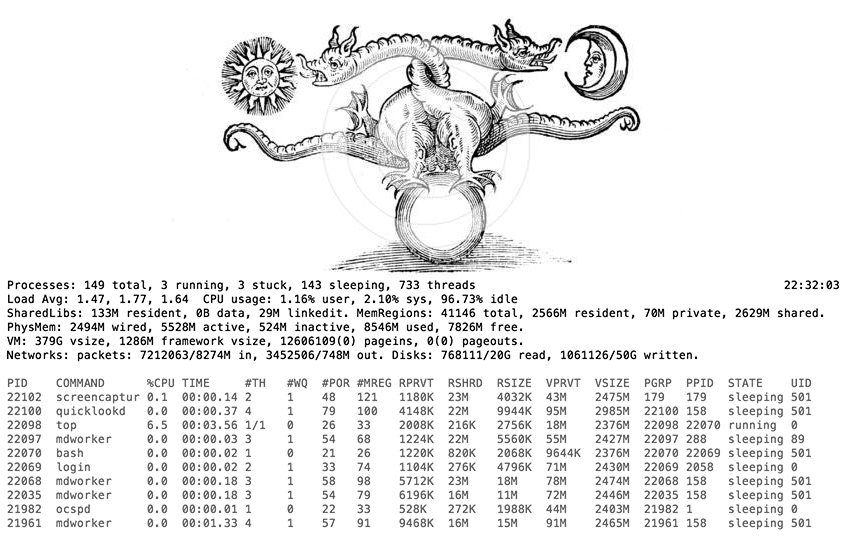
As the sun rise at the morning and the moon changes faces along the mount, every program on the system haves it own rhythm and music that nobody can listen. On the background of our systems this process run and take places. Know how to see this strings and pull of them are some of the vital things to learn for every apprentice. Also it will let him send jobs to this background world while they do something else.
Jobs can be put in the background either by initiating them in the background or by stopping a foreground job and then specifying that it be continued in the background.
The way a job is initiated in the background is by putting an ampersand (&) at the end of the command line. For example, to start a the update of the database of files on the computer we need to find and execute locate.updatedb (on linux it's updatedb) but it takes a long time to read the complete disk. So the solution is by doing:
sudo /usr/libexec/./locate.updatedb &A second technique is to stop the foreground job with control + Z, and then to specify that the job be continued in the background with the bg command (The Carrot, ^, represents holding down the control key while you press the letter after it).
sudo /usr/libexec/./locate.updatedb
    ^Z
    bg
When you run in the background a program that uses a graphical user interface for interaction, you will still be able to interact with its graphical elements in your windowing system. If you suspend it with ontrol + Z, you will not be able to interact with it until you start it running, either in the foreground (fg) or the background (bg).
The commands jobs and ps can be used to monitor the status of background jobs. As a demonstration, suppose that
A large compilation job is running in the background
'updated' is started, and then stopped with Control + Z
The report from the command jobs -l would look something like this:
    [1]  - 12527 Running              make oberon
    [2]  + 12530 Stopped              sudo ./locate.updatedb &
The [ ] numbers are the job numbers that bg (background), fg (foreground), and kill use. (See the sections below for the details).
The report from the command ps -u username would look something like this:
    PID     TTY      TIME CMD
    10272   pts/10   3:40 sudo ./locate.updatedb &
    9418    pts/10   0:00 csh
    10198   pts/10   0:00 run-mozi
    12527   pts/10   2:07 make oberon
The information in this display is explained in greater detail in man ps. It shows the running processes in greater detail than the jobs output. The numbers in the PID column are the process identification numbers associated with the processes named in the COMMAND column, and can be used by the kill command
A background job may be brought to the foreground if it was initiated during the current login session. Jobs which were initiated during other login sessions and which are still running cannot be brought to the foreground. However, it is possible to send signals to such jobs using the kill command-- see below. A background job or a stopped job may be brought to the foreground with the command fg.
fg %1The number following the percent sign is obtained from the leftmost column of the table given by the jobs command.
Jobs from the current session can usually be terminated by bringing them to the foreground and interrupting them with control + c key.
Another technique for terminating jobs running under your user id employs the kill command. There are two ways to refer to a particular job. The first uses the number in the leftmost column of the jobs command, as follows:
kill -9 %1The second way uses the process id given in the leftmost column of the ps -gx command, as follows:
kill -9 pid-numberThis can be used to terminate stopped and background jobs from the current session. It can be used to terminate jobs initiated by other login sessions of your user id.
The effect of background jobs on system performance depends upon the priority at which they run and how much RAM they require to run. Large jobs can consume immense amounts of RAM which can severely limit system performance. If the program requires too much RAM, the CPU will be wasting a lot of time swapping memory to and from disk rather than executing the jobs it needs to.
The other variable which affects system performance is job priority. If your jobs run at low priority, they will be done at the system's leisure and system performance will not be affected. If they are run at normal priority, they will increase the competition for resources and performance may be degraded. On a heavily loaded system, jobs should only be put into the background at low priority, using the nice command. To "nice" a job, just put the word nice before the command as you would regularly give it.
The current load on the system may be determined with:
uptimeThe three numbers at the right of the resulting report indicate the load. If the first of the three is over 3, background jobs should only be initiated with low priority (niced). For example:
nice make oberonTo change the priority of a running job, use the command renice. For example, if the command make oberon with process ID 12527 is slowing things down too much for everyone else, you could use the command;
renice 19 12527& Run the command in the background
ps Report a snapshot of the current processes.
top Display system tasks
kill Send a signal to a process
killall PROGRAM_NAME kill a process by app name
nice/renice Run a program with modified scheduling priority
bg Place jobspec into the background, as if it had been started with `&'. If jobspec is not supplied, the current job is used.
fg Bring jobspec into the foreground and make it the current job. If jobspec is not supplied, the current job is used.
jobs The first form lists the active jobs. The -l option lists process IDs in addition to the normal information; the -p option lists only the process ID of the job's process group leader. The -n option displays only jobs that have changed status since last notfied. If jobspec is given, output is restricted to information about that job. If jobspec is not supplied, the status of all jobs is listed.
suspend Suspend the execution of this shell until it receives a SIGCONT signal. The -f option means to suspend even if the shell is a login shell.
When job control is active, the kill and wait builtins also accept jobspec arguments.
This capability of sending things to background or foreground it's really handy, but if you are logging on and off all the time it's gets difficult. That's why there is a very powerful application it will take you in a completely new different level. It's call screen and is so much complex that certainly it deserve it own chapter